New here, or showing someone the ropes?
Take the guided tour for a 2-minute walk through the whole system, or read the documentation below — there's a section for every part of the platform, written in plain English.
How it all connects
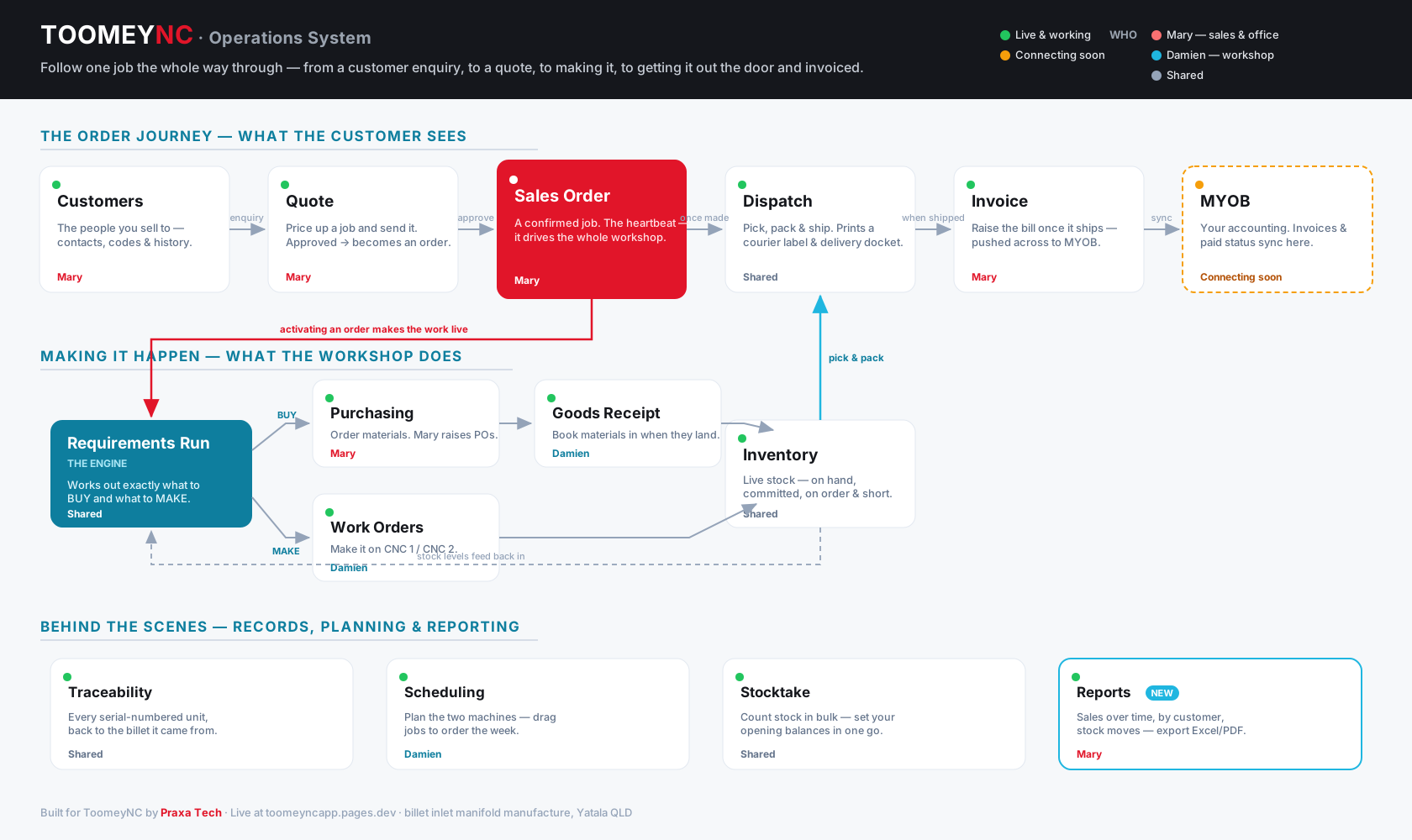
One picture of the whole system — follow a job from a customer enquiry through to invoicing.
Jump to
How the whole system fits together
Here's the big picture. A job flows along one path — from a customer asking for a price, all the way to a finished manifold you can trace back to the billet. Every page in the sidebar is just one stop on this path. The dashboard is the live summary of all of it.
- 1
1 · Quote
A customer asks for a price. You build a quote in Quotes and send it to them.
- 2
2 · Sales order
They say yes. The quote becomes a sales order (the 'To order' button) — a confirmed job on your books.
- 3
3 · Activate
You press Activate on that order. This switches it on, so the system starts planning the parts for it.
- 4
4 · Requirements Run
The system works out everything the order needs — breaking each manifold down into its parts and raw billet — and tells you exactly what to BUY and what to MAKE.
- 5
5 · Buy → Receive
For bought-in parts it raises purchase orders to your suppliers. When the boxes arrive you 'Receive goods' and they go into stock.
- 6
6 · Make → Cost
For parts you machine yourself it raises work orders. You log time against each stage, so the real material + labour cost is captured.
- 7
7 · Dispatch → Trace
The finished manifold is dispatched to the customer, and its entire history is recorded in Traceability — every batch, every stage, forever.
Inquiries
Every lead in one place — whether they came through the website form, Instagram, Facebook, email or a phone call. No more forgetting who asked what, or what you quoted them.
- 1
Leads land here
Your website form drops enquiries straight into the 'Inquired' column (and emails you an alert). For DMs or phone calls, hit 'Log inquiry' to add one by hand.
- 2
Move them along
Drag a lead through the pipeline — Inquired → Contacted → Quoted → Won or Lost — using the dropdown or the arrow on each card.
- 3
Turn a lead into a customer
Once it's real, click the person icon to add them as a customer, then raise their quote — so the whole journey is tracked from first hello.
Buttons & statuses
- Channel
- Where the lead came from — website, Instagram, Facebook, email, phone or other.
- Website form
- An embeddable form for your Squarespace site; submissions appear here automatically.
- Log inquiry
- Add a lead that came in by phone or social, by hand.
Customers
Your customer list — workshops, trade accounts and retail. Each one has a code (e.g. POW001) so you can find them fast and avoid duplicates when an order or quote goes through.
- 1
Find anyone fast
Search by customer code OR name. Filter by type (workshop / trade / retail). Every list exports to Excel and prints.
- 2
Open a customer
Click a name for their full record — contact details, address, payment terms and their complete order history.
- 3
Add or edit
Use 'New customer' to add one, or edit details on their page. You can also start a new quote for them straight from their record.
Buttons & statuses
- Customer code
- A short code like POW001 — first letters of the name plus a number. Search by code or name so the same customer is never entered twice.
- New quote
- Starts a quote with this customer already selected.
Quotes
This is where a customer inquiry becomes a priced quote — quick enough for the front desk, without pulling you off the tools. It's the very start of the path.
- 1
Build a quote
Pick the customer, add products from your catalogue — the description and price fill in automatically. Save it and it gets a number. The total adds up as you go.
- 2
Send it, track the reply
Mark it Sent once it's gone to the customer. When they come back with a yes, set it to Accepted. You can download a Quote PDF to send them.
- 3
Turn it into an order
Press 'To order' and the quote becomes a sales order — every line copied across, nothing re-typed. That's the hand-off from selling to doing.
What the statuses & buttons mean
- Draft
- Still being put together — not sent to the customer yet.
- Sent
- The quote has gone to the customer; you're waiting on their answer.
- Accepted
- The customer said yes — it's ready to become an order.
- Quote PDF
- Downloads a branded quote you can send the customer.
- To order
- Creates a sales order from this quote and marks the quote 'Converted'. Use it the moment a customer commits.
Sales Orders
Your order book — every confirmed customer order in one place. This page holds the single most important switch in the system: Activate. Until you press it, an order just sits here; once you do, the whole supply chain springs into action.
- 1
An order lands here
Either created directly, or made from an accepted quote with 'To order'. It starts as Open — saved, but parked.
- 2
Activate it
When the job is really going ahead, press Activate. The order flips from Open to Activated, and its parts become 'live demand' the system will plan for.
- 3
Now it drives everything
The Requirements Run only looks at Activated orders. So activating is what tells the system to go buy or make the parts for this job.
- 4
Through to fulfilled
As work starts it shows 'In fulfilment'; once you record the dispatch it becomes Fulfilled. Click any order number to open its full detail page.
What 'Activate' actually does
- Open
- The order is saved but parked — it is NOT driving any purchasing or making yet.
- Activate
- Switches the order on. From this moment its parts count in the Requirements Run, so the system knows to buy or make them.
- Activated
- Live. The order's parts are now included in the Requirements Run, purchasing and work orders.
- In fulfilment
- Work has started — a work order for this order is in progress.
- Fulfilled
- Built and dispatched to the customer.
- Return
- Records a return against a dispatched order — store the MYOB credit-note reference here.
Dispatch
Record what's gone out the door. When an order is built and ready, you log the shipment here — the carrier, the tracking number — and print a delivery docket to go with it.
- 1
Record a shipment
Press 'Record shipment', pick the activated order, choose the carrier (TNT, StarTrack, Australia Post or direct), add the tracking number and ship date.
- 2
It fulfils the order
Recording a dispatch automatically moves that sales order to Fulfilled, so your order book stays accurate.
- 3
Print the docket
Each dispatch has a 'Docket PDF' — a delivery docket with the ship-to address and the line items, ready to drop in the box.
Buttons & statuses
- Record shipment
- Logs a dispatch against an order — carrier, tracking and date — and marks the order Fulfilled.
- Docket PDF
- A printable delivery docket for the shipment, with the customer's address and what's in the box.
Invoices
Your sales invoices, kept in step with MYOB. An invoice is raised once an order ships; it pushes across to MYOB, and the paid status syncs back so you can see what's outstanding at a glance.
- 1
Raised when it ships
Once a dispatched order is ready to bill, an invoice is created here — line items, GST and total — carrying the MYOB invoice number (continuing your existing sequence).
- 2
Pushes to MYOB
The invoice goes across to MYOB for the accounting side, so nothing's entered twice. The number stays in step with MYOB's own run.
- 3
Paid status comes back
When it's paid in MYOB, that syncs back here — so the order book and the outstanding total are always current. Returns are recorded as a credit-note reference.
Buttons & statuses
- Outstanding
- An invoice that's been raised but not yet paid — what the customer still owes.
- Paid
- Synced back from MYOB once the payment lands.
Requirements Run
The engine room. It reads every Activated sales order, works out every part needed to fulfil them, checks what you already have, and hands you a simple to-do list: what to buy, and what to make. This is the link that's missing today between what you sell and what you have to order.
- 1
Demand from orders AND work orders
Every activated sales order and every open work order (including manual stock builds) drives demand — broken down through each kit, right down to raw billet.
- 2
Committed to — see exactly why
Each line shows what it's committed to: the sales order, the work order, or the minimum-hold buffer. Tick the filters or pick a specific order to see only what you need for it.
- 3
Netted against on hand AND on order
It subtracts what's on the shelf and what's already on a PO or work order, so you never double-order. You only ever buy or make the true shortfall.
- 4
BUY or MAKE — one click
Tick the parts to purchase → grouped POs with a ready-to-send email. For parts you machine, raise a work order straight to the workshop.
Columns & filters
- Committed to
- The sales order(s) / work order(s) that need this part. SO- = a sale, WO- = a build.
- On order
- Quantity already on a purchase order (buy) or already on a work order (make) — so it's not counted as short.
- Sales orders / Work orders / Min hold
- Tick to filter the list — e.g. only what's needed for sales orders, or only the minimum-hold top-ups.
Purchasing
Every purchase order in one place. POs are raised for you from the Requirements Run — this is where you track them and book the goods in when they turn up.
- 1
POs arrive here automatically
When you generate purchase orders from the Requirements Run, they land here grouped by supplier, each with its lines and total.
- 2
Email the supplier
Each PO carries a drafted email and a PO PDF, so it goes out in one click.
- 3
Receive the goods
When the delivery arrives, press 'Receive goods'. Stock goes up and a traceable lot is created — with the supplier's batch number recorded against it.
Statuses & buttons
- Sent
- PO has gone to the supplier; you're awaiting delivery.
- ETA flag
- Each open PO shows days to its expected date — green while there's time, amber as it nears, red when it's overdue so you can chase the supplier.
- Receive goods
- Books the delivery in: on-hand stock increases and a traceable lot is created for it.
- Bill to MYOB
- Pushes the supplier bill to MYOB once goods are received — so your accounts payable stays in MYOB.
Jobs & Work Orders
Where the making happens. A work order is a job to build something in-house — raised from the Requirements Run — and this is where you watch it progress and capture what it costs.
- 1
Two ways to raise a job
From the Requirements Run (to fulfil a sale), or hit 'New work order' here to build to stock — a manual job that raises the requirements for its parts underneath it.
- 2
Open a job for the full detail
Click a work order to see its stages (tick them off as you go), the costed materials, time logged, and its documents.
- 3
Documents travel with the job
Drawings and setup sheets held on the item code are copied into the work order when it's raised — open them, mark them up, and the mark-ups save against that job.
- 4
Log time, get true cost
'Log time' pre-fills from the item's standard machine/setup time — adjust and save. Material + labour = the real cost of every manifold. Print a Traveller PDF for the shop floor.
Buttons & statuses
- New work order
- Raise a manual build-to-stock job (not tied to a sale). It still creates the requirements for the parts it needs.
- Log time
- Records hours against a stage — pre-filled from the item's standard time — and adds to the job's labour cost.
- Traveller PDF
- A shop-floor run-sheet: the operations to tick off, the kit to gather, and a sign-off.
Inventory
Everything you hold, in one list — stocked parts, raw billet, the sub-parts you make, and non-stock services. It's the stock level the Requirements Run checks against.
- 1
Know what's on hand
On-hand quantity, unit cost and value for every item. Search or filter by category, or by make vs buy.
- 2
Make, buy, or both
Every item is flagged as something you make, something you buy, or either. Manufactured items also carry a standard setup + machine time that pre-fills Log Time on a job.
- 3
Minimum hold & reorder point
Keep a buffer on the shelf with minimum hold, and set a reorder point to trigger restocking. Anything short is flagged and pulled into the Requirements Run.
Buttons & statuses
- Make / Buy / Both
- Whether you manufacture the item, purchase it, or can do either — filterable.
- Min hold
- The buffer you never want to drop below. Reorder point is the level that triggers restocking.
Stocktake
Count the shelf and set the numbers in one go. Use it once to load your opening stock at go-live, and again any time you do a periodic count.
- 1
Enter counted quantities
Each item shows its current on-hand. Type the counted figure beside it — search or filter to find things fast.
- 2
Save the count
Saving overwrites on-hand with what you counted. Only changed rows are updated, so you can do it in passes.
- 3
Everything stays in step
The new levels flow straight into Inventory and the Requirements Run.
Buttons & statuses
- Save stocktake
- Writes your counted quantities to Inventory as the new on-hand. Use it for opening stock or a periodic count.
Traceability
Full build history for every manifold — back to the billet. This is the capability you won't leave Accentis without, and it's built right in.
- 1
Pick a finished serial
Every manifold gets a serial (e.g. TNC-0039). Select one to see its complete genealogy.
- 2
See the whole build
Which billet heat-lot it was cut from, which injector batch went in, which supplier PO each part came from, who machined it and when — stage by stage, with the job cost.
- 3
Reverse it for recall
Switch to 'Material recall', pick an incoming lot, and instantly see every finished unit it went into — so a flagged supplier batch is never a guessing game.
Scheduling
Queue jobs, estimate the time, and see what's on the bench and what's next — the production picture in one view. The Gantt you could never get working in Accentis.
- 1
Production timeline
A Gantt of your work orders: scheduled jobs in blue, queued jobs as planned slots, with a marker for today.
- 2
Two machines, drag to plan
Two lanes — CNC 1 and CNC 2 — since you can run two jobs at once. Drag a job to re-order it, or drop it on the other machine to move it across.
- 3
Finished jobs drop off
Once a work order is complete it leaves the board, so you're only ever looking at what's still to do.
Buttons & statuses
- Drag a job
- Re-order jobs within a machine, or move a job between CNC 1 and CNC 2 — the new plan saves instantly.
Reports
The numbers behind the business — sales over time, who's buying, and every stock movement — all filterable and exportable to Excel or print.
- 1
Sales over time
Invoiced revenue by month across the financial year, with the year-to-date total at a glance.
- 2
Sales by customer
Every customer's orders, units, total value, what's paid and what's still outstanding. Filter by state, search, and export.
- 3
Stock movement history
A running ledger of what came in (goods receipts, finished work orders) and what went out (dispatches), with the reference for each.
Buttons & statuses
- Excel
- Downloads the table exactly as filtered — opens straight into Excel or Google Sheets.
- A clean printable version of the current table, filters and all.
Every page also has a How this works button (top right) for help on just that screen.